Target Audience: New Incoming Students — Spring 2027
General Information
- You must complete your Housing Application and Roommate Profile before you can create a Roommate Group or begin searching for roommates[cite: 23].
- If you want to select your own roommate, you must set up a Roommate Group by January 4, 2027[cite: 23].
Tips on How to Set Up a Roommate Group
- Designate an Owner: Decide which one of you will be the creator (owner) of the Roommate Group[cite: 23]. The owner does not need to be the student who submitted their deposit first — the housing system will use the earliest depositor in the roommate group for hall placement[cite: 23].
- Email Addresses: As the owner, make sure you know the exact email address your future roommate used when they filled out their eRezLife housing application[cite: 23].
- Housing Applications Completed: All Roommate Group members must have completed their own housing application[cite: 23].
- All-Gender Roommate Groups: If you want to live in an all-gender location, you will be able to select members for your Roommate Group whose gender identity is different from your own[cite: 23]. If you have a mixed-gender Roommate Group, the system will assign you to rooms that are available in all-gender locations[cite: 23].
Section 1: How to Set up a Roommate Group with Someone You Know
- From your dashboard, click on "Roommate Groups" on the left-hand navigation bar[cite: 23].
- Click on "Create New Roommate Group"[cite: 23].
On the new page that appears, create a name for your Roommate Group[cite: 23].
Note: Your Roommate Group name will be visible to staff members in the Office of Residential Life[cite: 23].
Image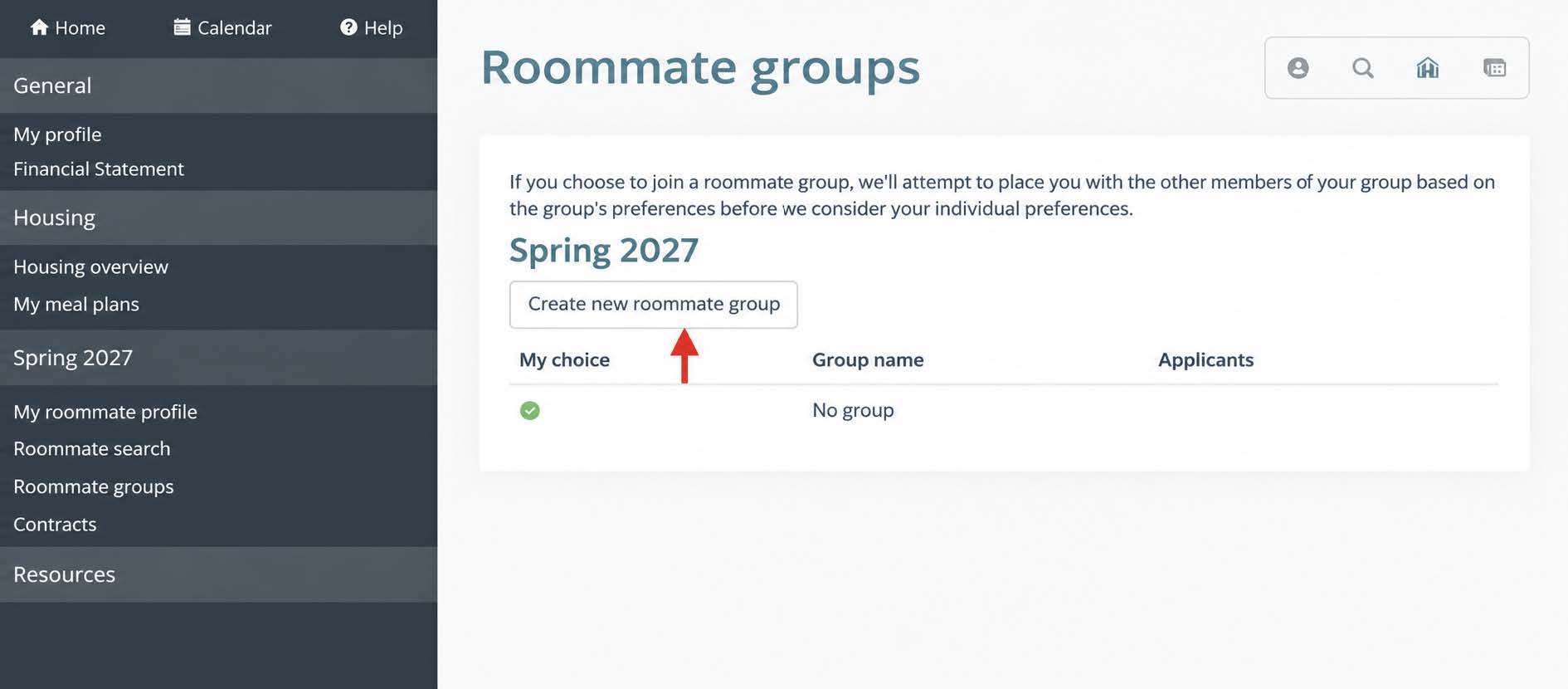
- The Roommate Group owner will see their name under "Members"[cite: 23, 24]. This person is the only person who can add or remove names[cite: 23].
- For a 4-person room (Quad), list 3 additional names[cite: 23].
- For a 2-person room (Double), list 1 additional name[cite: 23].
- Enter your future roommate's exact email address as listed in their eRezLife application and click "Save"[cite: 24]. They will now appear under the "Members" section[cite: 24].
- Accepting the Invitation:
- Once added, an email invitation titled "You've been invited to join a roommate group!" is sent to the added member[cite: 24].
- The invited member must log into eRezLife, navigate to "Roommate Groups", and click the unchecked button underneath "My Choice" next to the group name[cite: 24].
- A green checkmark will appear next to the invited person's name once accepted[cite: 24]. Save and exit[cite: 24].
Section 2: How to Use Roomeez to Search for a Roommate & Set up a Roommate Group
- Click on "My roommate profile" on the left-hand menu[cite: 25].
- Check the box for "Turn on my profile" and fill out all required fields (indicated by a red asterisk
*)[cite: 25, 26]. - Profile Visibility Preferences: Select your comfort level for sharing application details[cite: 26, 27]:
- All applicants: Viewable by anyone searching for roommates[cite: 27].
- My contacts: Only viewable after accepting a contact request[cite: 27].
- Private: Only viewable by you[cite: 27].
- Fill out preferred contact methods under "How would you like your contacts to communicate with you?" (e.g., Phone/Text, Email, Instagram, etc.)[cite: 27].
- Searching & Connecting:
- Navigate to "Roommate Search"[cite: 27, 28]. Use the filters to find potential roommates with matching habits and preferences, then click "Search"[cite: 27, 28].
- In the results, send a contact request to initiate communication[cite: 28].
- If it is a match, click "Add to roommate group"[cite: 28]. If not, you can withdraw the request or block the contact[cite: 28].
- Approving Requests:
- Contact requests trigger an email alert to the recipient[cite: 28].
- When logged in, a red notification badge will appear next to "Roommate Groups" indicating pending requests[cite: 28].
- Manage all active and pending connections at any time under the "Contacts" menu[cite: 28].